

Step-by-Step: Tracking Spotify Clicks on Squarespace Using GA4
If you are running your music brand, portfolio, or blog on Squarespace, you’ve likely realised that the platform's built-in analytics leave a lot to be desired. It will tell you basic geographic data and page view counts, but it leaves you completely in the dark when it comes to user behavior. If you have a massive "Listen on Spotify" button on your homepage, Squarespace won't tell you how many people are actually hitting it.
To fix this and start capturing actionable data, you need to leverage Google Analytics 4 (GA4) Enhanced Measurement. Here is the clean, no-nonsense developer setup guide to tracking outbound music clicks on Squarespace without writing a single line of custom JavaScript.
Step 1: How to Add Your GA4 Tag to Squarespace
First, you need to connect your Squarespace site directly to your Google Analytics property.
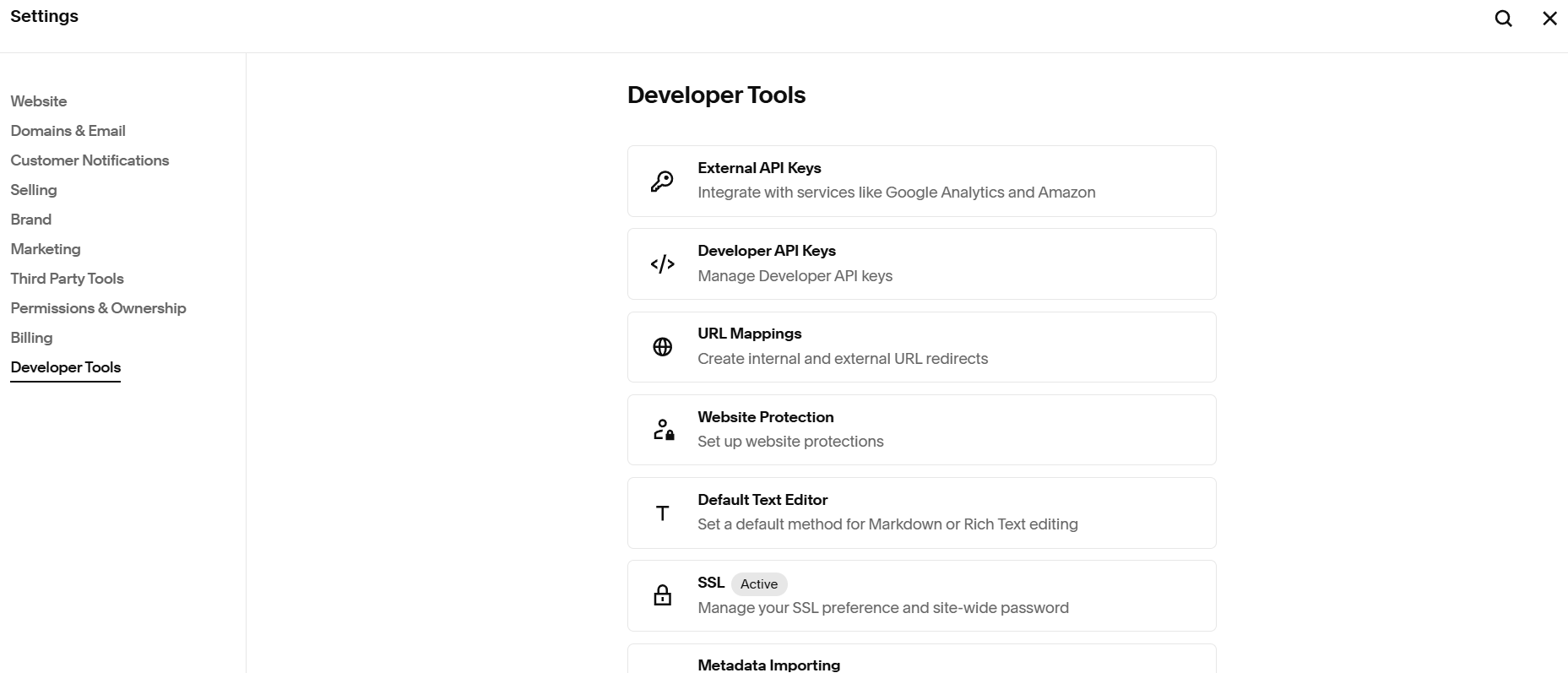
Hint: gear icon in the bottom left!
Log into your Google Analytics dashboard, go to Admin > Data Streams, select your web stream, and copy your Measurement ID (it will look like G-XXXXXXXXXX).
Log into Squarespace, navigate to the main dashboard, and follow this path: Settings > Developer Tools > External API Keys.
Find the field labeled Google Analytics and paste your G- Measurement ID directly into the box. Hit save. Squarespace will now automatically deploy the global script across every page of your site.
Step 2: Verify Enhanced Measurement
The beauty of GA4 is that it has built-in tracking for standard user actions, known as Enhanced Measurement. Outbound clicks are tracked automatically, but you must ensure the feature is actively enabled.
1.Open Data Streams: GA4 Admin.
Go back to your GA4 dashboard, click Admin (the gear icon), and select Data Streams under the Data Collection menu.
2.Configure Settings: Stream Details.
Click on your active website stream to open the details window. Look for the Enhanced Measurement section.
3.Toggle Clicks On: Measurement Settings.

Click the gear icon within the Enhanced Measurement box. Ensure that the Outbound Clicks toggle is switched on, then click save.
Step 3: View Spotify Outbound Link Clicks in GA4
Once enabled, GA4 fires an event called click every time a user selects a link that leads away from your domain. To find your specific streaming numbers, you need to isolate this event:
In GA4, navigate to Reports > Engagement > Events.
Locate and click on the click event from the list.
To see the specific URLs being clicked, look at the link_url parameter card.
To make this data truly useful for your campaigns, you need to create a customized exploration report. This filters out random external clicks (like social media icons or partner sites) and isolates the exact number of fans who took action to stream your music.
📥 Skip the Setup: 5-Minute GA4 Blueprint
Because Google Analytics 4 doesn't let us share direct template links externally, I built a quick, 3-page PDF Configuration Guide.
It contains the exact screenshots, dimensions, and copy-paste filters you need to build this custom Spotify dashboard in under five minutes.
Why This Changes Your Strategy
Suddenly, you aren't guessing. If you change the colour or layout of your Spotify button on your Squarespace home page, you can look at GA4 a week later and see if your conversion rate improved. You gain the exact analytical insight used by major label digital teams, giving your independent setup a professional edge.